

Some things are easier to capture as an image than as text.
A sketch on a napkin. A photo of something you want to remember. A screenshot you want to save with your notes. A reference image you want to keep in your vault.
Quick Capture lets you capture these images on your iPhone and send them to Obsidian without turning the process into file management.
You can capture an image directly from Quick Capture, or send an existing photo to Quick Capture from another app.
At a glance
With Photo Capture, you can:
- Sketch something directly on your iPhone.
- Take a photo with your camera.
- Import a photo or video from Photos or Files.
- Select a screenshot from your Photos library.
You can start a photo capture from Quick Capture itself or send an existing image through the iOS Share Sheet.
4-ways to capture a photo
1. Capture a sketch
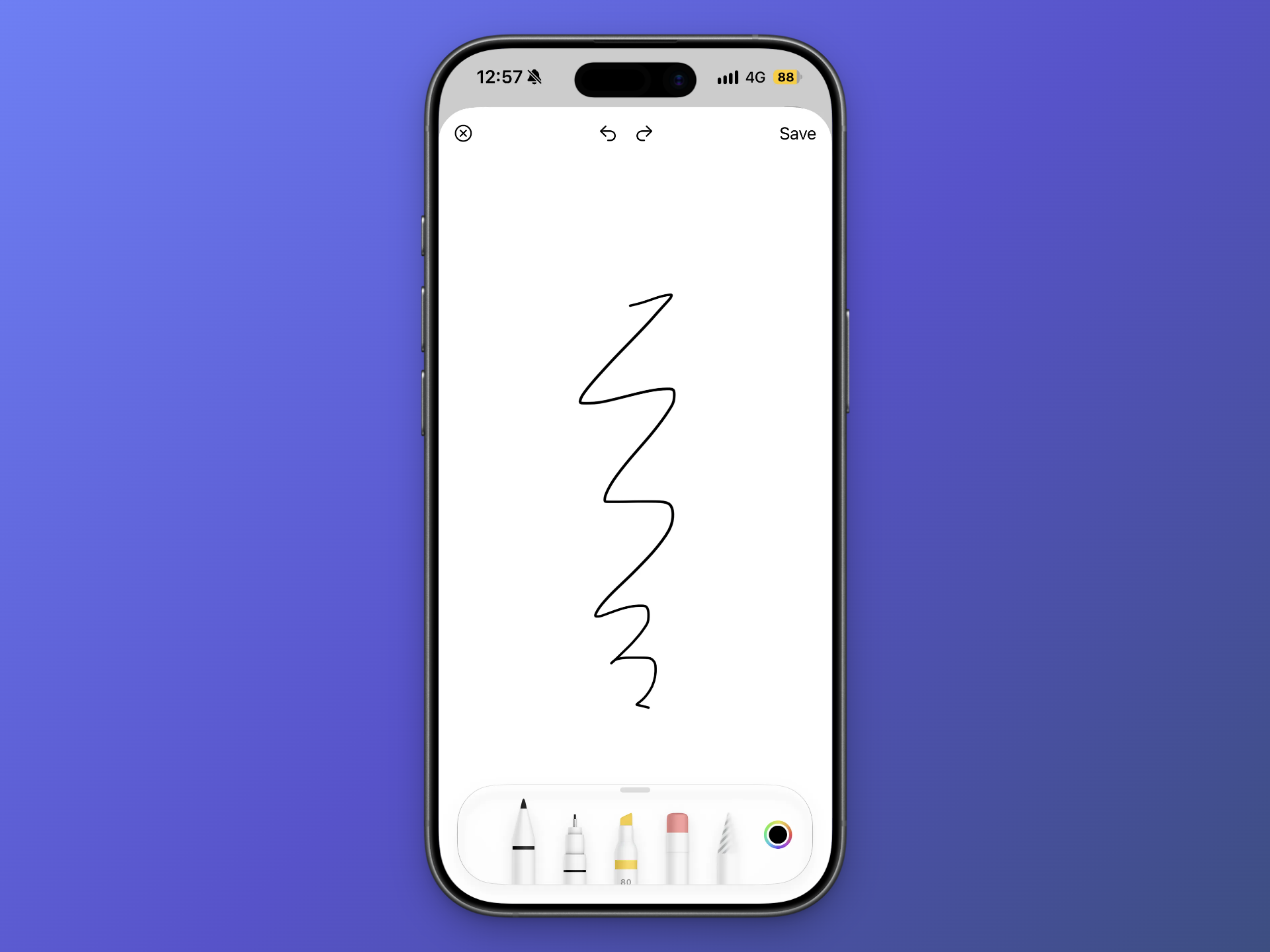
Sometimes the fastest way to capture an idea is to draw it.
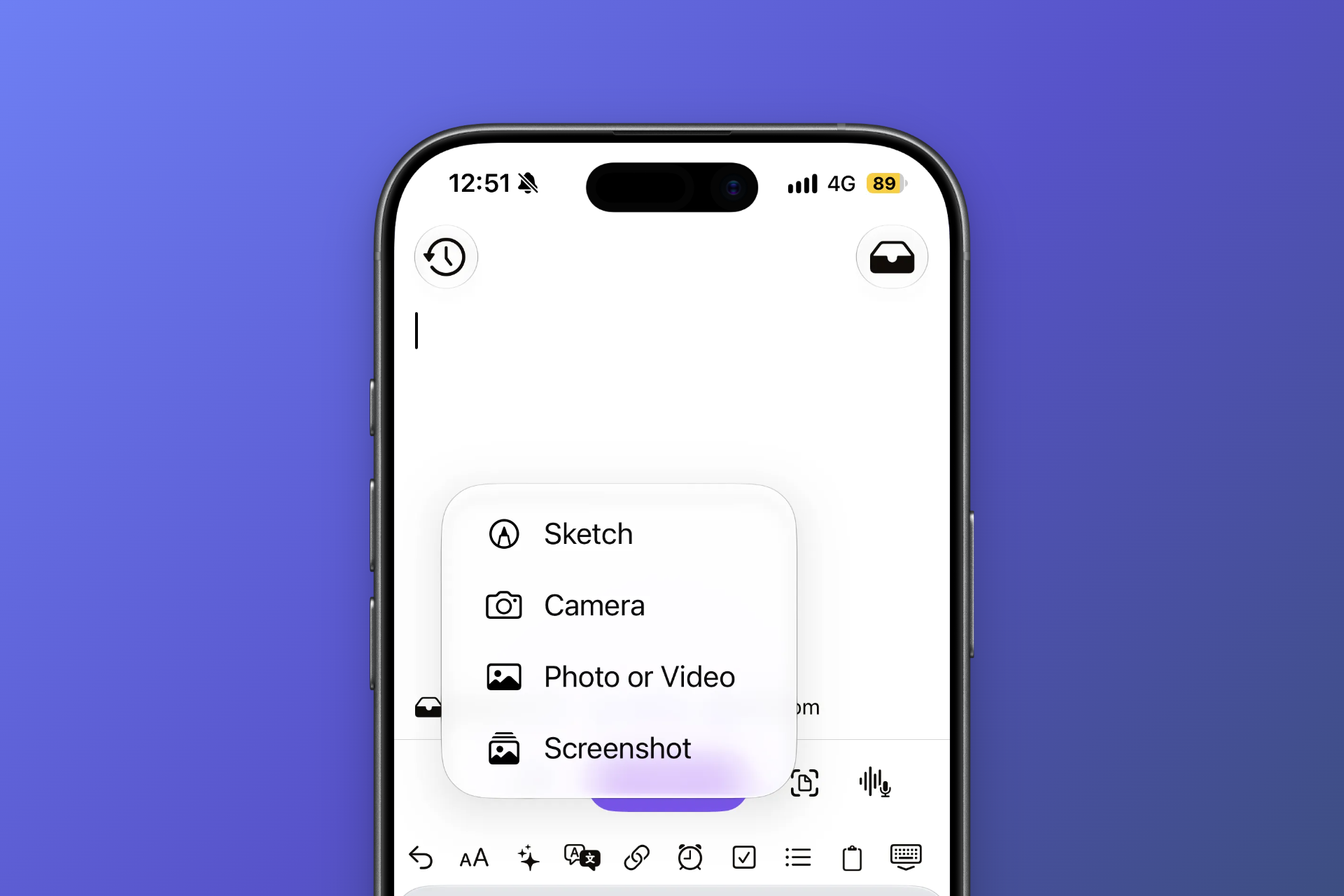
Choose Sketch to open a blank canvas and draw directly in Quick Capture.
This works well for things such as:
- diagrams
- rough ideas
- handwritten notes
- wireframes
- arrows and annotations
- anything that is faster to draw than type
Once you’re finished, save the sketch and continue with your normal Quick Capture workflow.
2. Take a photo with your camera
Choose Camera when you want to capture something around you.
Take the photo directly from Quick Capture and continue with your normal capture flow.
This can be useful for:
- whiteboards
- handwritten notes
- physical documents
- books and pages
- products or objects
- places you want to remember
- anything you don’t want to describe manually
Instead of taking a photo now and figuring out what to do with it later, the photo can become part of your Obsidian workflow immediately.
3. Import an existing photo or video
Already have the image in your library?
Choose Photo or Video to pick an existing item from the Photos app or Files app.
This is useful when the image already exists and you simply want to move it into your Obsidian workflow.
For example, you might already have:
- a screenshot
- a saved reference image
- a photo from earlier in the day
- an image downloaded from another app
- a video you want to keep with your notes
Select the item and continue with Quick Capture.
4. Capture a screenshot from Photos
Screenshots are often temporary.
You take one because something caught your attention, then it sits in your Photos library alongside hundreds of other images.
Quick Capture lets you turn that screenshot into an Obsidian capture instead.
Select Screenshot from the photo capture menu and choose the screenshot you want to send.
This can be useful for saving:
- interesting ideas
- UI references
- articles or pages
- messages
- diagrams
- things you want to revisit later
The screenshot can become part of your Obsidian vault instead of remaining buried in your camera roll.
2-ways to start a photo capture
There are two main ways to use Photo Capture in Quick Capture.
Capture from Quick Capture
Open Quick Capture and choose the type of image you want to capture.
You can:
- Open Quick Capture.
- Choose Photo Capture.
- Select Sketch, Camera, Photo or Video, or Screenshot.
- Create or choose your image.
- Continue with your normal capture workflow.
- Send it to your configured Obsidian destination.
This is useful when you already know that you want to create a capture.
Send a photo from another app
You don’t always start with Quick Capture.
Sometimes you’re already looking at the photo you want to save.
In that case, use the Share Sheet.
For example, open the Photos app, select an image, tap Share, and choose Quick Capture - Obsidian.
Quick Capture opens with the selected image ready to be captured.
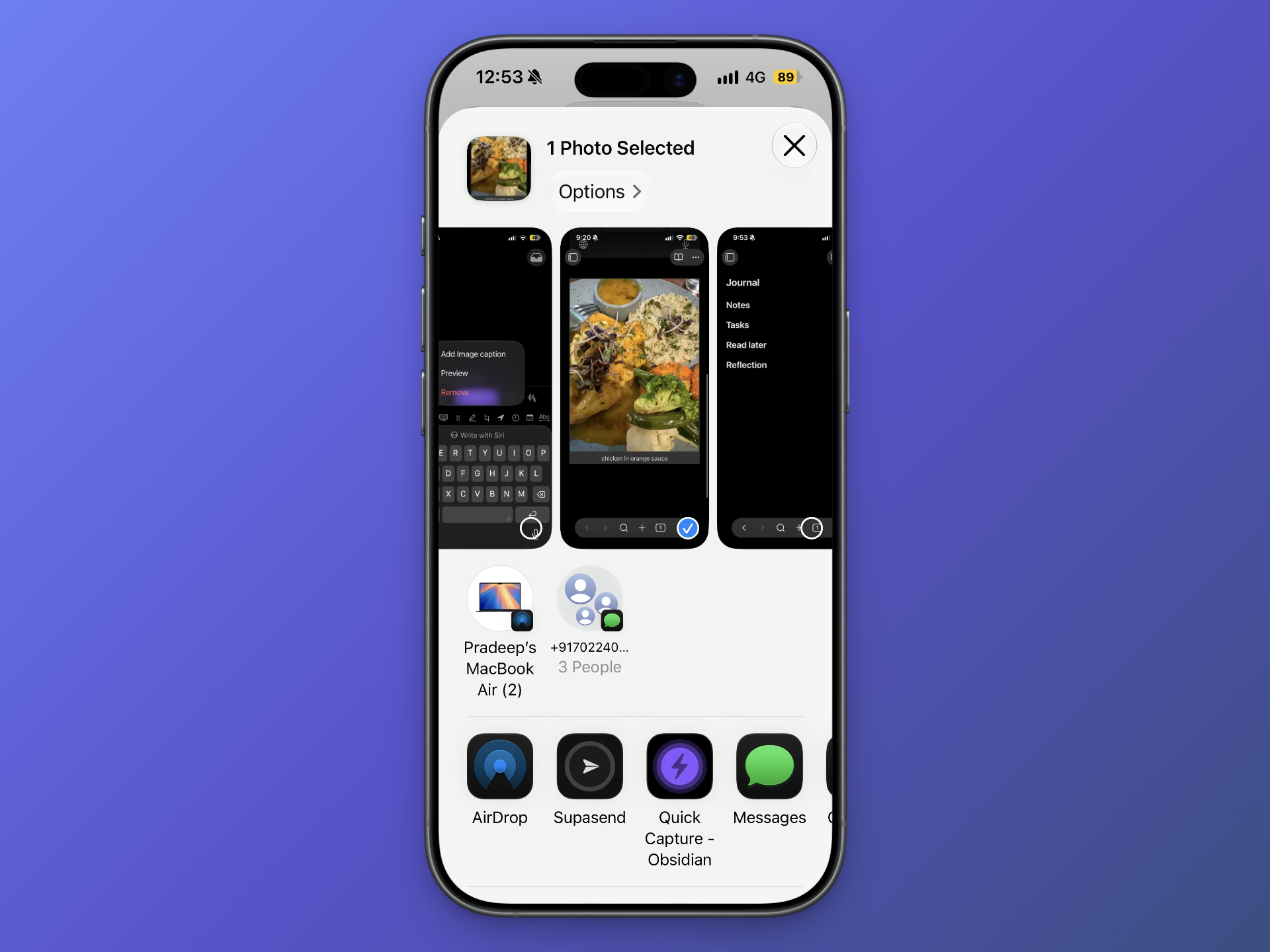
This is especially useful for photos that already exist in your library because you don’t need to copy the image, switch apps, and then figure out where to save it manually.
You can start from the thing you are already looking at.
Add a photo to the right place in Obsidian
Capturing the image is only half of the workflow.
The useful part is being able to send it where you actually want it in your vault.
For example, your photo might belong in:
- your Daily Note
- a journal
- a project note
- an existing page
- a specific section of a note
- an inbox

Quick Capture lets you configure your destinations so that capturing an image doesn’t have to mean deciding where it belongs every single time.
That makes Photo Capture useful for more than simply moving images from your phone to your vault.