
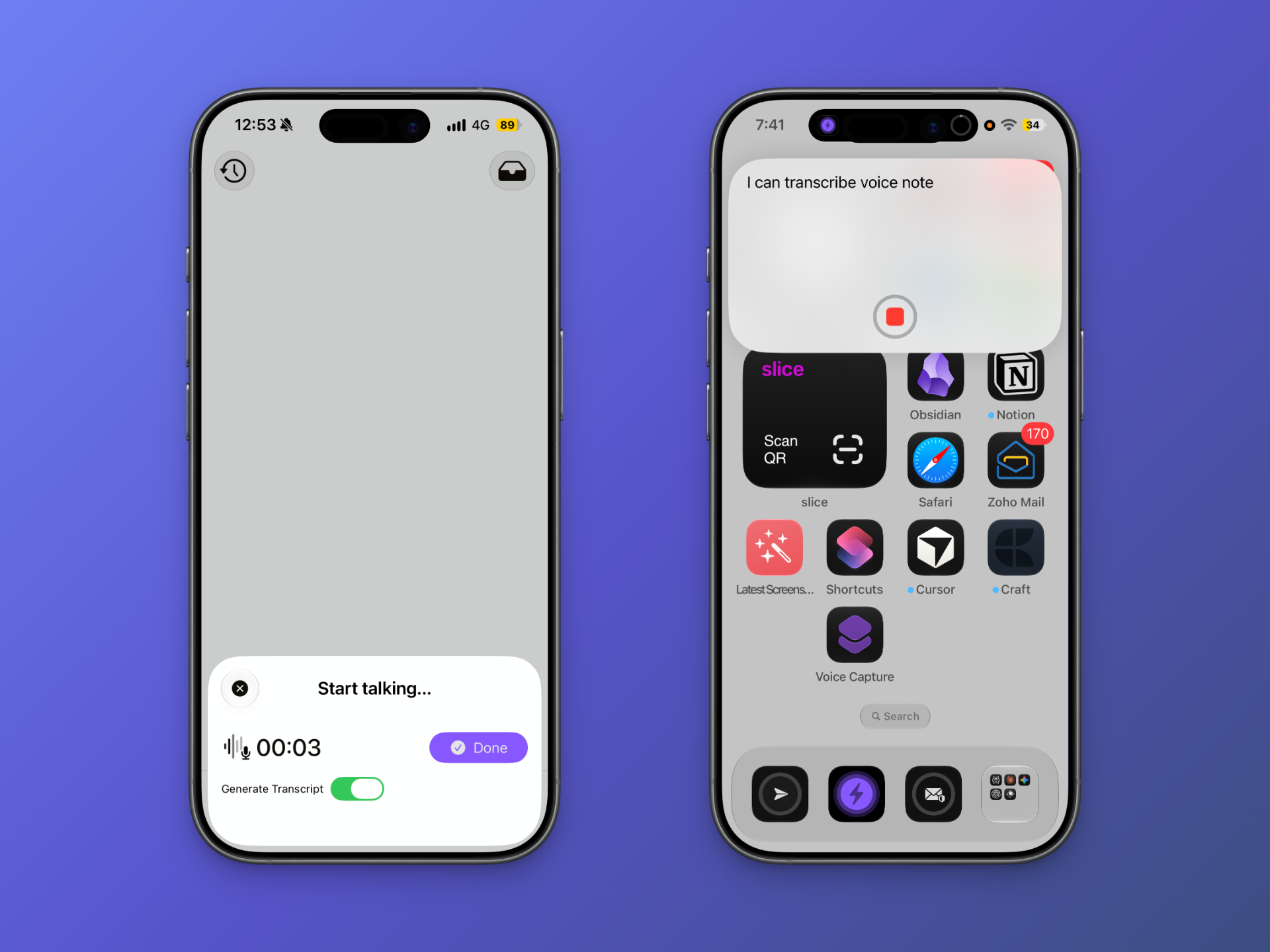
Some ideas are easier to say than type.
Maybe you’re walking and don’t want to stop to write something down. Maybe you naturally think out loud. Or maybe you simply prefer recording a quick voice note over typing on your phone.
Quick Capture gives you two ways to capture voice notes and get them into your Obsidian workflow.
You can record a voice note directly in Quick Capture, or use an Apple Shortcut for a faster voice-to-text workflow with live transcription.
2-ways to capture voice notes
Quick Capture supports two voice capture workflows:
- Voice recording in Quick Capture — record a voice note directly from the app and transcribe it.
- Voice recording with an Apple Shortcut — use Apple’s on-device transcription to turn your voice into text as you speak.
Both approaches are useful, depending on how you like to capture.
1. Record a voice note in Quick Capture
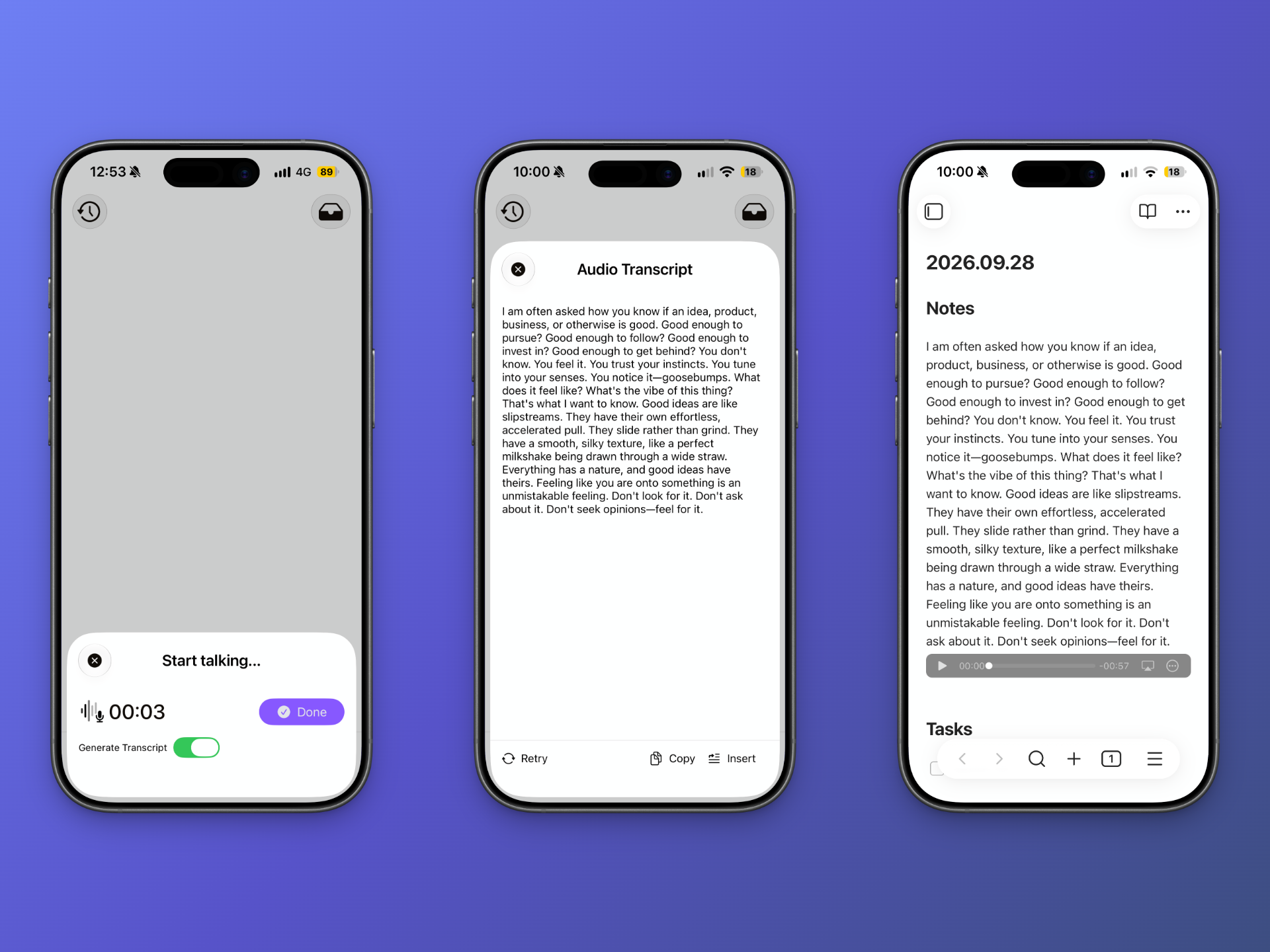
Open Quick Capture and tap the Audio button to start recording.
Record your thoughts naturally, without worrying about typing or formatting while you’re speaking.
When you’re finished, Quick Capture can transcribe the recording and continue with your normal capture workflow.
Transcription is powered by Apple Intelligence and OpenAI.
This makes the regular voice recording workflow useful when you want to:
- capture an idea while you’re thinking about it
- record a longer thought instead of typing
- journal by speaking
- capture notes while walking
- quickly record something you don’t want to forget
- turn spoken thoughts into notes for Obsidian
You don’t need to be someone who already takes lots of voice notes to use this workflow. It can also be an easy way to start experimenting with voice-based note taking.
2. Capture with an Apple Shortcut
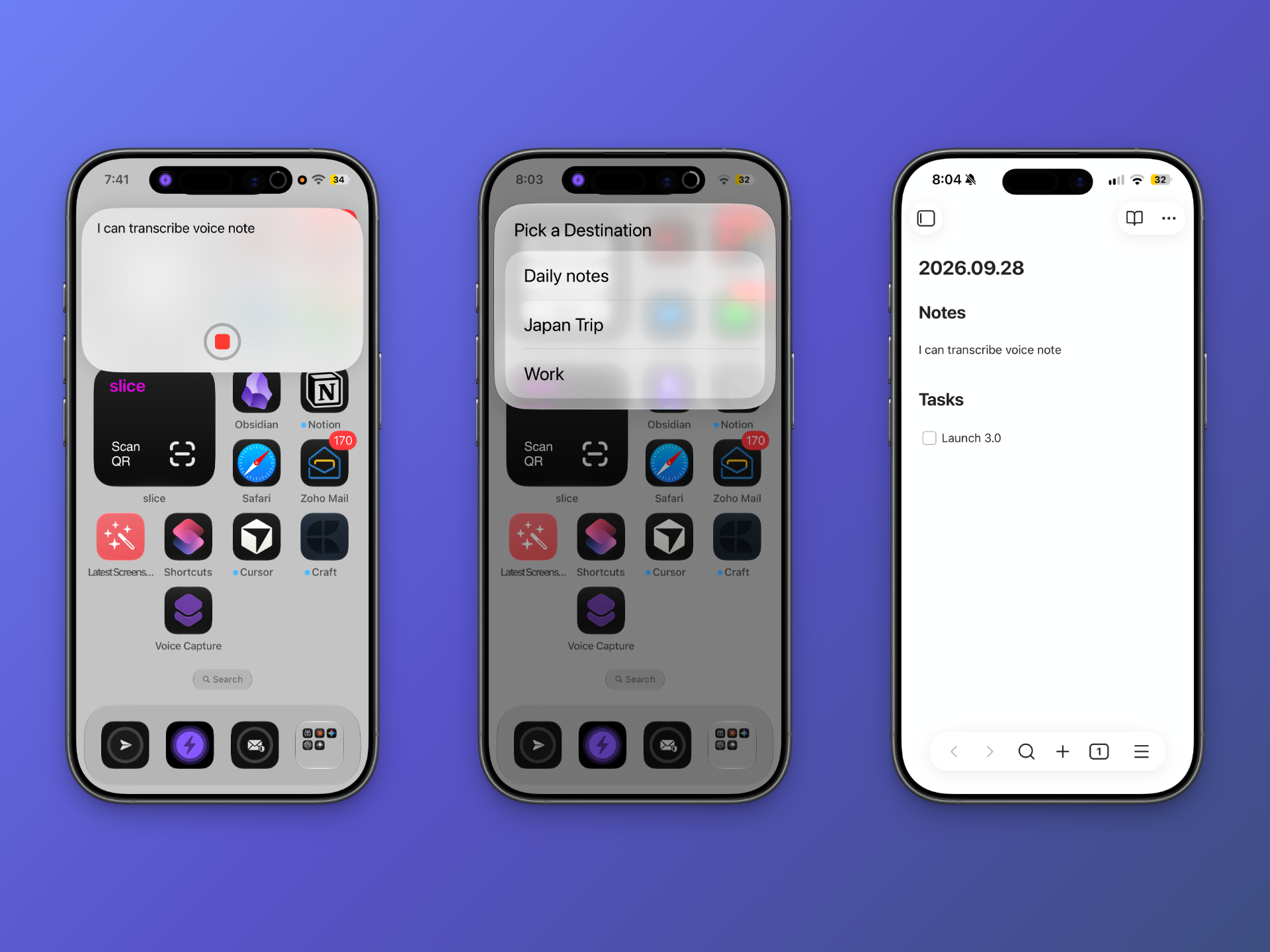
For a more hands-free workflow, you can use the Quick Capture Apple Shortcut.
The Shortcut uses Apple’s on-device transcription to turn your speech into text as you speak.
You can download the Voice Capture Shortcut and add it to your iPhone.
Once it’s set up, you can start a voice capture without opening Quick Capture first.
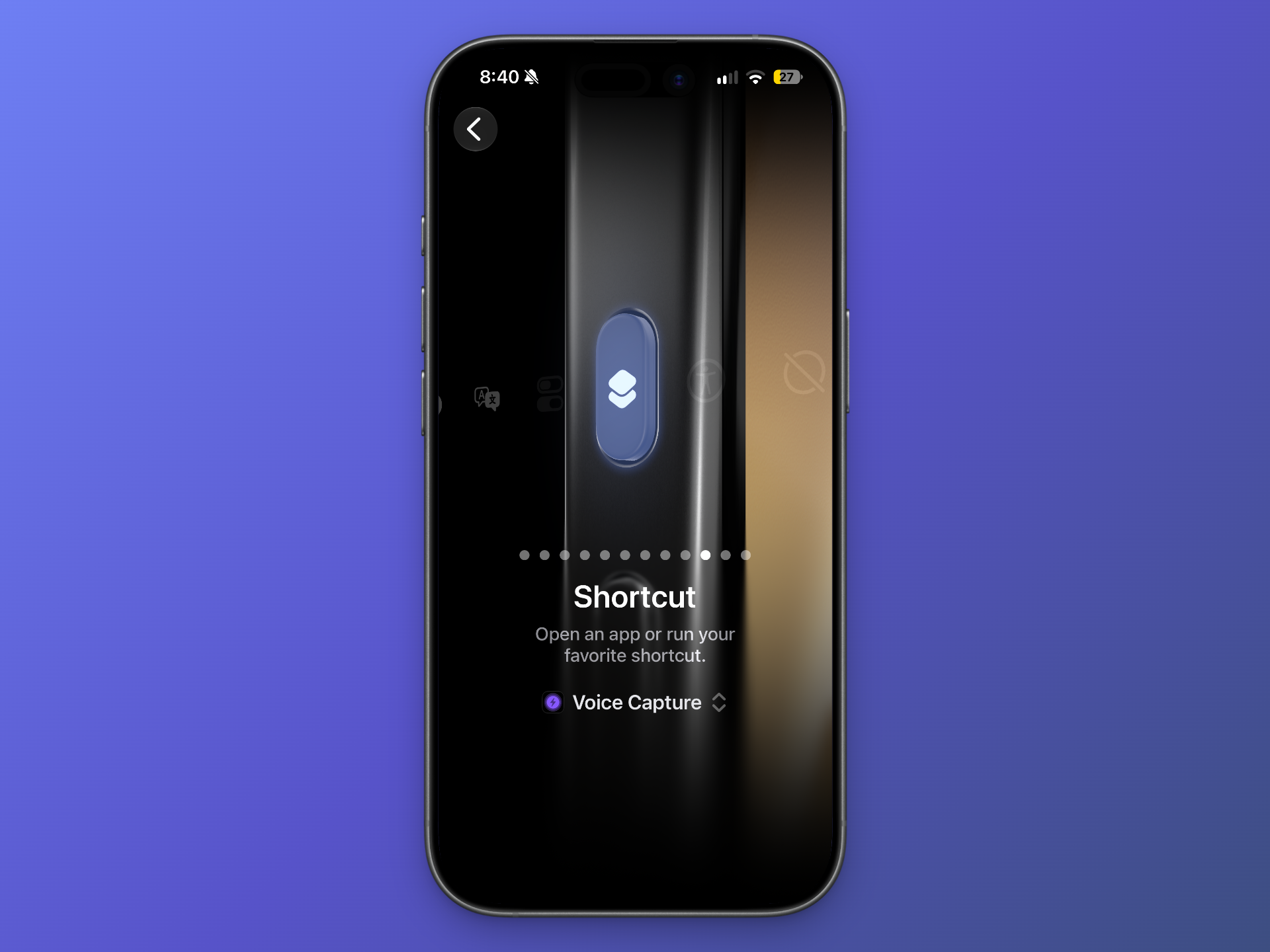
Pro-tip: Pair it with the Action Button
The shortcut becomes particularly useful when paired with the Action Button on supported iPhones.
Press the Action Button, start speaking, and let the Shortcut handle the rest.
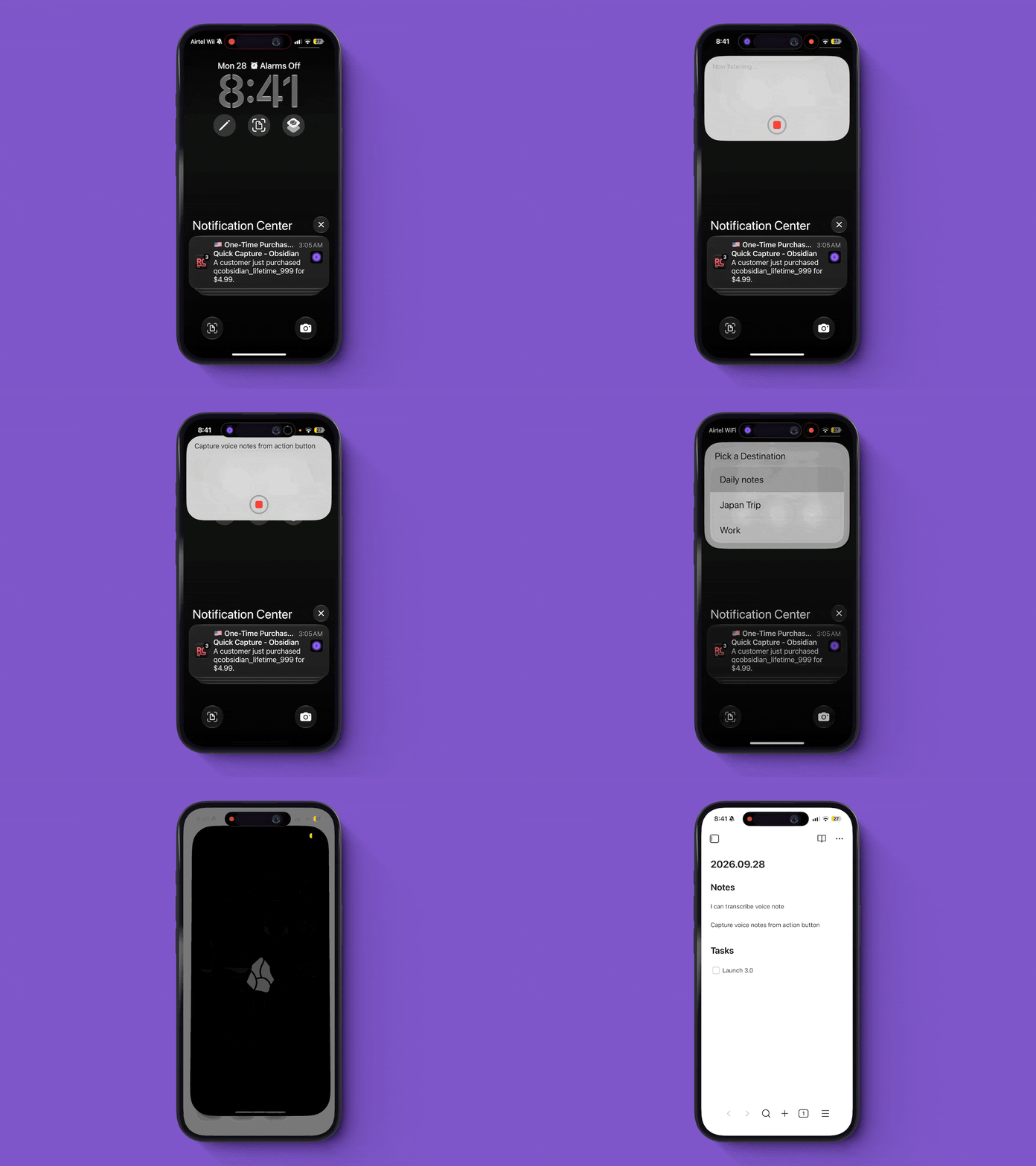
This is useful when you want to capture something immediately without navigating through an app first.
For example:
- you’re walking and an idea comes to you
- you want to capture a reminder without typing
- you want to journal by speaking
- you want to record something while your hands are busy
- you want the fastest possible way to get a thought into Obsidian
The idea is simple:
Press. Speak. Capture.
Power users: Send voice captures automatically to Obsidian
By default, a voice capture requires you to choose the Obsidian destination where you want to send the resulting note.
That works well when you want to decide where each capture belongs.
But your workflow might always look the same.
Maybe you want every voice capture to go to today’s Daily Note. Or perhaps you always send your voice notes to a specific document.
In that case, you can configure the Apple Shortcut with a pre-selected destination.
Then the workflow becomes:
Press the shortcut → speak → transcribe → send to your chosen destination.
You don’t have to choose the destination every time.
This is especially useful for power users who have a fixed voice capture workflow.
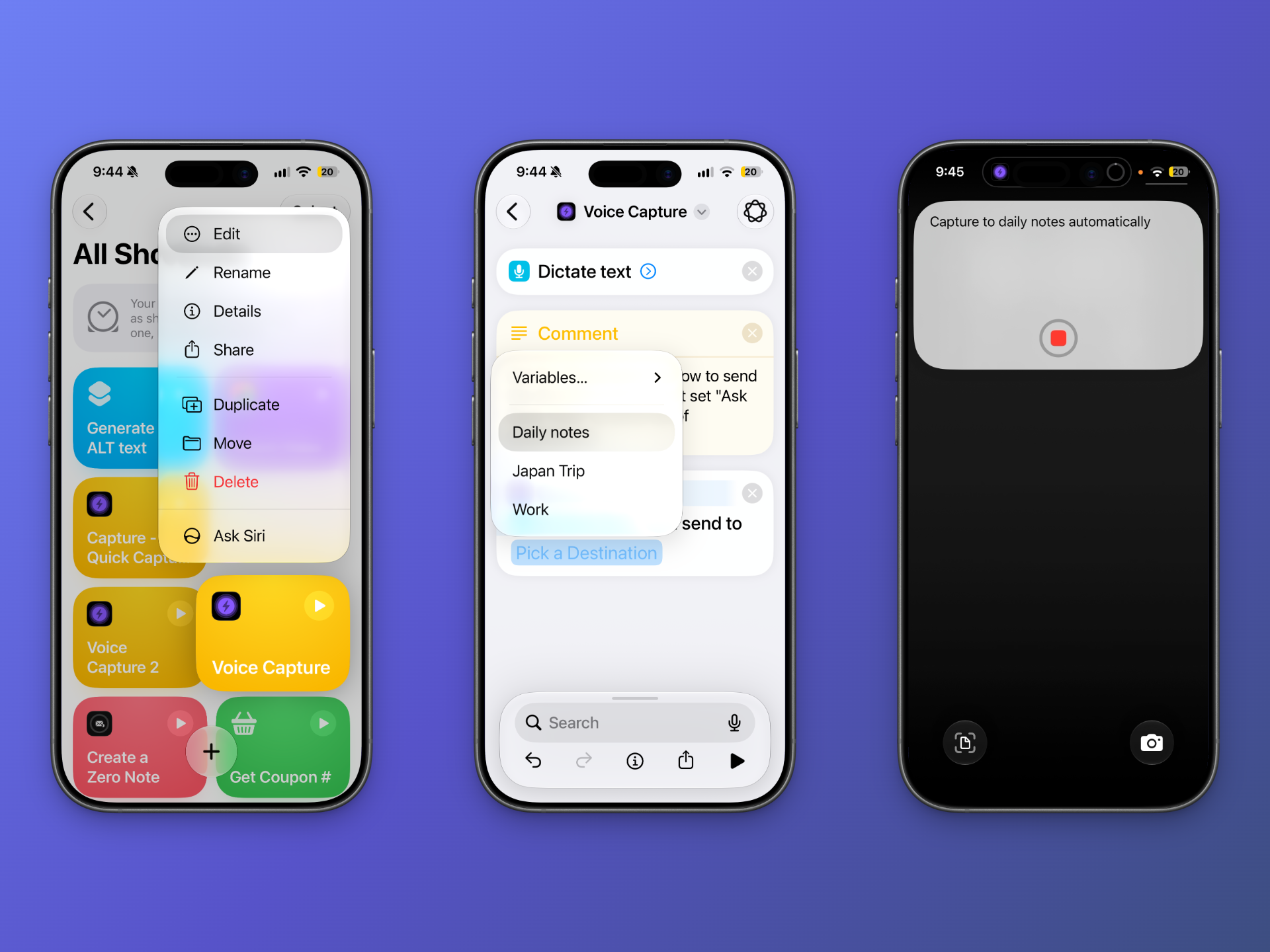
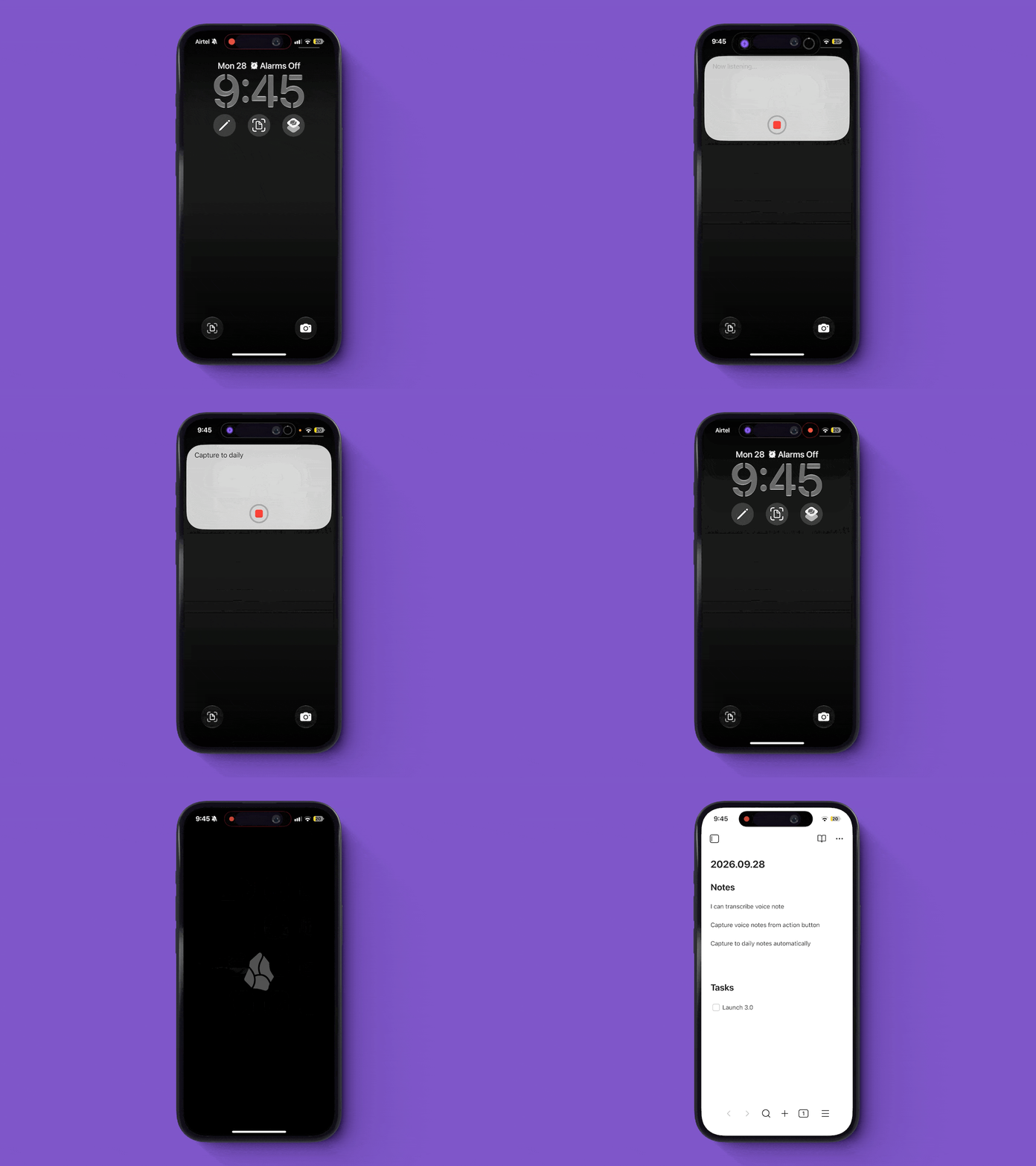
Voice capture to your Daily Note
A simple setup is to send every voice capture to your Daily Note.
That gives you a place to capture thoughts throughout the day without thinking about where they should go.
For example:
- morning thoughts
- ideas during the day
- things you want to remember
- quick reflections
- tasks you think of while working
- notes you want to organize later
Instead of stopping to organize every thought, you can capture it first and sort it out later.
Which voice capture workflow should you use?
Both workflows solve the same basic problem, but they work differently.
Use Quick Capture’s voice recording when:
- you want to start from the app
- you prefer recording a voice note first
- you don’t need live transcription
- you want to choose your destination after recording
- you want a simple way to get started with voice notes
Use the Apple Shortcut when:
- you want live transcription
- you want a faster workflow
- you don’t want to open Quick Capture first
- you want to use the Action Button
- you always send voice captures to the same destination
You can use both. Start with the regular voice recording workflow and move to the Shortcut when you want a more automated setup.